Windows Developer Mode is a powerful and versatile feature that caters to developers, enabling them to build, test, and debug applications seamlessly on the Windows platform. Whether you’re a seasoned developer or just starting your journey, understanding how Windows Developer Mode works and its myriad benefits can significantly enhance your development experience. In this blog, we’ll delve into the intricacies of Windows Developer Mode, its features, and the advantages it brings to the table.
How Windows Developer Mode Works ?
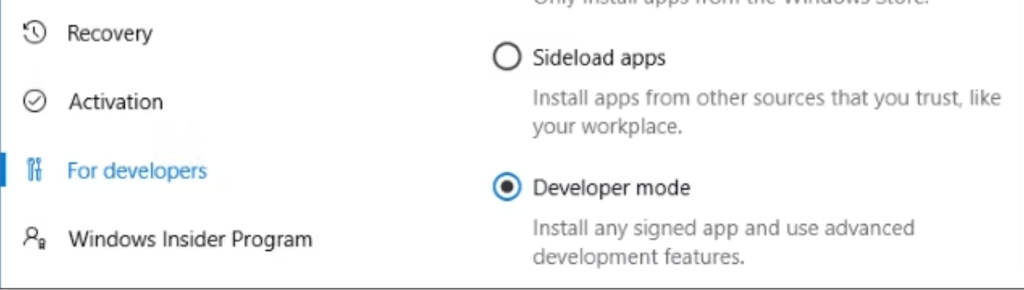
Windows Developer Mode is essentially a set of features and settings within the Windows operating system that allows developers to sideload apps, access advanced debugging tools, and perform various tasks necessary for app development. To activate Developer Mode:
Go to Settings: Navigate to the “Settings” app on your Windows device.
Update & Security: Click on “Update & Security.”
For Developers: Select the “For developers” tab from the left-hand menu.
Developer Mode: Choose “Developer mode” under the “Use developer features” section.
Once you’ve enabled Developer Mode, your Windows device is ready for development tasks.
Benefits of Windows Developer Mode
Sideload Apps: One of the primary benefits of Developer Mode is the ability to sideload apps, which means you can install and test applications from sources other than the Microsoft Store. This is particularly useful for developers who want to test their apps before submitting them to the Store or for those who want to install apps that aren’t available through official channels.
Debugging Tools: Windows Developer Mode comes with a suite of advanced debugging tools, including Visual Studio and Windows Device Portal. These tools enable developers to identify and resolve issues in their applications more efficiently.
Access to Device Portal: The Device Portal is a web-based tool that allows you to remotely configure and monitor your Windows device. It provides insights into performance, system diagnostics, and app deployment, making it an invaluable resource for developers.
Full File System Access: Developer Mode grants developers full access to the Windows file system, allowing them to interact with files and directories that are otherwise restricted. This can be helpful for tasks like data extraction, configuration management, and more.
Features of Windows Developer Mode
Device Portal: As mentioned earlier, the Device Portal is a feature-rich tool that provides a dashboard for managing various aspects of your Windows device, including performance, networking, and app deployment. It also offers a real-time console for debugging JavaScript and inspecting HTML/CSS in Universal Windows Platform (UWP) apps.
Remote Debugging: Windows Developer Mode supports remote debugging, allowing you to debug UWP apps running on remote devices. This feature is especially useful for testing apps on different configurations.
Access to Developer Mode Apps: After enabling Developer Mode, you can install apps from sources like Visual Studio, allowing for quicker development cycles and easy testing.
How Windows Developer Mode is Fast ?
The speed of Windows Developer Mode largely depends on your hardware, especially the processing power and memory of your machine. Running resource-intensive development tools and emulators may slow down your system, so having a powerful computer will contribute to a smoother experience.
In terms of the development process, Windows Developer Mode can significantly speed up app testing and debugging. Features like remote debugging and sideloading apps make it easier and faster to iterate on your projects.
Windows Developer Mode is an indispensable tool for developers creating applications for the Windows platform. It offers a range of benefits, including sideloading apps, advanced debugging tools, and access to the Device Portal. While its speed depends on your hardware, the efficiency and convenience it brings to the development process cannot be overstated. So, if you’re a Windows developer, be sure to explore and utilize Developer Mode to supercharge your development efforts.
Windows Developer Mode Also for Gaming Enthusiasts
Accessing Experimental Features: Developer Mode grants access to experimental features and settings not available in the standard Windows gaming environment. This can include beta features, performance optimizations, and early access to updates that can improve gaming performance.
Sideloading Game Mods: Gamers often enjoy customizing their gaming experiences with mods and extensions. With Developer Mode, you can sideload game mods that might not be available through official channels, allowing you to personalize your games to your liking.
Performance Optimization: Developers often need to fine-tune their apps for performance, and this knowledge can be beneficial for gamers too. With Developer Mode, you can access advanced settings and tools that can help you optimize your system’s performance for gaming, such as adjusting CPU priority and system resource allocation.
