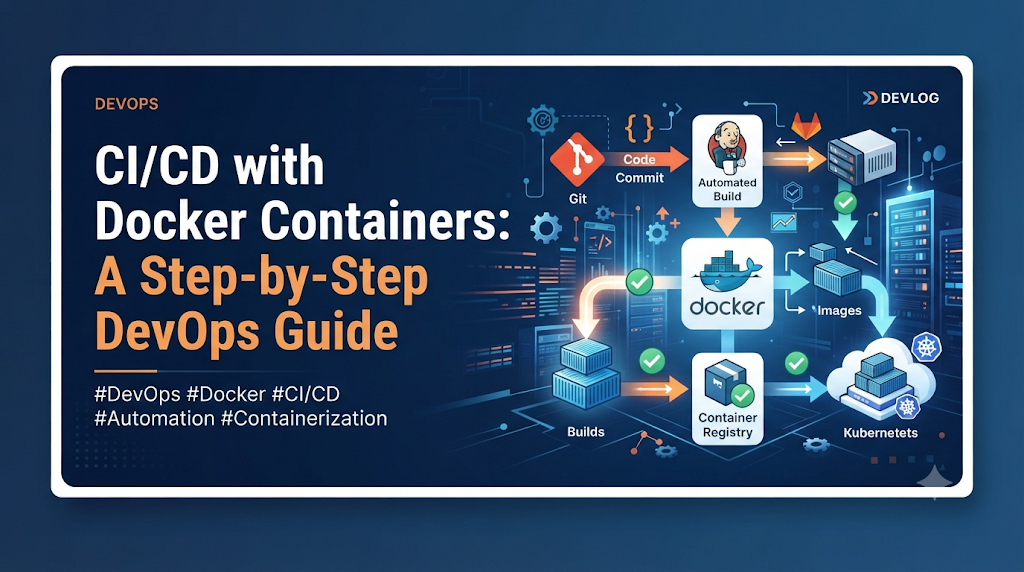
Every development team eventually faces a frustrating scenario: an application runs flawlessly on a developer’s laptop, but immediately breaks when deployed to staging or production. Traditional deployment methods leave too much room for human error, but Docker containers solve this by packaging code, runtime, and dependencies into a single immutable artifact. When you combine Docker with Continuous Integration and Continuous Delivery (CI/CD), you establish a predictable, repeatable pipeline. Professionals looking to master these competencies often explore structured training programs, such as those offered by DevOpsSchool, to build practical proficiency in modern containerization and automation workflows. This guide walks you through building an end-to-end pipeline that automates builds, runs tests, publishes versioned images, and deploys containers reliably.
Understand How Docker Fits Into the CI/CD Lifecycle
Continuous Integration and Continuous Delivery focus on automating the software release process. Containerization acts as the glue that binds code and infrastructure together. Understanding the responsibilities of each stage ensures a smooth delivery pipeline:
- Source Code Management: Tracks code revisions and triggers pipeline runs upon code commits.
- Continuous Integration: Automatically fetches code changes and prepares the build environment.
- Automated Testing: Validates code quality, unit integrity, and integration workflows.
- Docker Image Creation: Packages the validated application into an isolated container image.
- Container Registry: Stores and secures versioned Docker images.
- Continuous Delivery: Prepares verified images for automated promotion to staging or production.
- Container Deployment: Instantiates containers from images onto target hosts.
- Monitoring and Feedback: Observes application health and reports pipeline outcomes.
Docker Image vs. Running Container
A clear distinction between a Docker image and a running container is essential for automated delivery:
- Docker Image: A read-only template containing instructions for building a container. It includes the application code, runtime, libraries, and environment configurations. Images are static artifacts stored in registries.
- Running Container: A lightweight, isolated, executable instance of a Docker image. When a pipeline deploys software, it instructs the host system to run a container based on a specific image version.
Prepare the Tools and Sample Application
To follow this tutorial hands-on, ensure your workstation or build environment has access to the following prerequisites:
- Git: For version control and source code management.
- Docker Engine or Docker Desktop: To build and test container images locally.
- Docker CLI: For interacting with the Docker daemon.
- A Sample Web Application: A lightweight Node.js or Python web service.
- CI/CD Platform: A tool like GitHub Actions, GitLab CI, or Jenkins.
- Container Registry: Docker Hub, GitLab Container Registry, or a private registry.
- Deployment Environment: A cloud instance or virtual server with Docker installed.
Verifying Docker Installation
Open your terminal and run the following command to verify that the Docker daemon is running correctly:
Bash
docker version
If the CLI returns both client and server version details without connection errors, your environment is ready.
Containerize the Application Before Automating It
Before you build an automated pipeline, you must define how your application is packaged. We will use a simple Node.js web application for this tutorial.
Creating the Dockerfile
Create a file named Dockerfile in the root directory of your application repository:
Dockerfile
# Use an official lightweight Node.js runtime as the parent image
FROM node:18-alpine

# Set the working directory inside the container
WORKDIR /app

# Copy package dependency files
COPY package*.json ./

# Install application dependencies
RUN npm install --production

# Copy the rest of the application source code
COPY . .

# Expose the port the application runs on
EXPOSE 3080

# Define the command to run the application
CMD ["node", "server.js"]
Explaining Dockerfile Instructions
FROM node:18-alpine: Selects a minimal Linux distribution pre-configured with Node.js 18, reducing image size and attack surface.WORKDIR /app: Sets the default working directory for subsequent instructions.COPY package*.json ./: Copies package manifest files first to leverage Docker layer caching during dependency installation.RUN npm install --production: Installs only production dependencies.COPY . .: Copies the remaining application code into the container filesystem.EXPOSE 3080: Documents the network port the container listens on.CMD ["node", "server.js"]: Specifies the default executable command when the container starts.
Building and Running the Image Locally
Build your Docker image locally using the docker build command:
Bash
docker build -t my-node-app:v1.0.0 .
Verify that the image was created successfully:
Bash
docker images
Run the container locally to test its functionality:
Bash
docker run -d --name test-app-container -p 3080:3080 my-node-app:v1.0.0
Verify that the container is running:
Bash
docker ps
Stop and remove the test container once verified:
Bash
docker stop test-app-container
docker rm test-app-container
Design the Container-Based CI/CD Pipeline
A container-based CI/CD pipeline translates manual build and deployment steps into an automated sequence.
[Source Code Push]
       │
       ▼
[Code Validation] ──► [Automated Testing]
       │
       ▼
[Docker Image Build] ──► [Image Vulnerability Scan]
       │
       ▼
[Registry Publishing] ──► [Container Deployment] ──► [Health Verification]
Pipeline Stage Breakdown
- Source Checkout: Clones the repository at the specific commit SHA.
- Code Validation: Lints code and checks syntax.
- Dependency Installation: Pulls required libraries.
- Automated Testing: Executes unit and integration test suites.
- Docker Image Build: Compiles source code into a Docker image.
- Image Scanning: Inspects image layers for known vulnerabilities.
- Registry Publishing: Pushes the tagged image to a container registry.
- Deployment: Pulls the image and updates the target environment.
- Post-Deployment Health Check: Confirms the application responds correctly.
If any stage fails—such as a broken test or a security vulnerability—the pipeline halts, preventing defective code from reaching production.
Automate Docker Image Builds
Automating image builds ensures that every code change results in a standardized container artifact.
Build Considerations
- Build Context: Keep the build context clean by using a
.dockerignorefile to exclude unnecessary files likenode_modules,.git, and local log files. - Commit-Based Versioning: Tag images with unique identifiers such as git commit SHAs or semantic version tags rather than overwriting
latest. - Build Cache: Order your Dockerfile instructions from least frequently changed (base image, dependencies) to most frequently changed (source code) to optimize caching.
Example CI Pipeline Configuration (GitHub Actions)
Below is an illustrative pipeline configuration file (.github/workflows/ci-cd.yml):
YAML
name: Docker CI/CD Pipeline

on:
  push:
    branches:
      - main

jobs:
  build-and-test:
    runs-on: ubuntu-latest
    steps:
      - name: Checkout Source Code
        uses: actions/checkout@v4

      - name: Set up Docker Buildx
        uses: docker/setup-buildx-action@v3

      - name: Login to Container Registry
        uses: docker/login-action@v3
        with:
          username: ${{ secrets.REGISTRY_USER }}
          password: ${{ secrets.REGISTRY_PASSWORD }}

      - name: Build and Push Docker Image
        uses: docker/build-push-action@v5
        with:
          context: .
          push: true
          tags: myregistry/my-node-app:${{ github.sha }},myregistry/my-node-app:latest
Run Automated Tests Before Publishing Images
Never promote a Docker image to a registry without verifying its functional correctness. Automated testing in a container workflow typically occurs in two phases:
- Host or Containerized Testing: Running unit and integration tests inside the CI runner before building the image, or inside a temporary test container.
- Container Startup Checks: Verifying that the built container starts successfully and passes health endpoints.
If unit tests fail, the build job exits with a non-zero status code, aborting image creation and registry publishing.
Publish Docker Images to a Container Registry
Once tests pass, the pipeline publishes the container image to a secure registry.
Registry Options
- Docker Hub: Public and private hosted container registry.
- GitLab Container Registry: Integrated registry tied directly to GitLab repositories.
- Private Registries: Enterprise registries such as AWS ECR, Azure ACR, or Google Artifact Registry.
Authentication and Security
Never hardcode registry credentials in pipeline configuration files. Always inject credentials securely using environment secrets managed by your CI/CD platform.
Illustrative Publishing Commands
Bash
# Log in to the container registry securely
echo "$REGISTRY_PASSWORD" | docker login registry.example.com -u "$REGISTRY_USER" --password-stdin

# Tag the local image with the registry path and version
docker tag my-node-app:latest registry.example.com/team/my-node-app:v1.2.3

# Push the image to the registry
docker push registry.example.com/team/my-node-app:v1.2.3
Deploy Containers Automatically
Deployment automates the transition from the container registry to the target host environment.
Deployment Workflow Steps
- Connect securely to the target deployment server (via SSH or deployment agent).
- Pull the latest tagged image from the container registry.
- Stop and remove the existing container gracefully.
- Start a new container instance with appropriate port mappings and environment variables.
- Verify application health.
Example Deployment Script
Bash
#!/bin/bash
set -e

IMAGE="registry.example.com/team/my-node-app:v1.2.3"
CONTAINER_NAME="app-production"

echo "Logging into container registry..."
docker login registry.example.com -u "$REGISTRY_USER" -p "$REGISTRY_PASSWORD"

echo "Pulling latest image: $IMAGE"
docker pull $IMAGE

echo "Stopping existing container if running..."
docker stop $CONTAINER_NAME || true
docker rm $CONTAINER_NAME || true

echo "Starting new container instance..."
docker run -d \
  --name $CONTAINER_NAME \
  -p 80:3080 \
  -e NODE_ENV=production \
  --restart unless-stopped \
  $IMAGE

echo "Deployment completed successfully."
Choose the Right Deployment Approach
As applications scale, single-host deployments evolve into more resilient architectures:
- Single-Host Docker Deployment: Simple setup running containers on one virtual machine using Docker CLI or shell scripts. Best for small applications or staging environments.
- Docker Compose: Manages multi-container applications on a single host using declarative YAML definitions.
- Kubernetes-Based Deployment: Orchestrates containers across multi-node clusters, handling automated scaling, self-healing, and rolling updates.
- Blue-Green Deployment: Maintains two identical environments (Blue and Green) to eliminate downtime during releases.
- Rolling Deployment: Gradually replaces old container instances with new ones to ensure zero downtime.
Secure Docker-Based CI/CD Pipelines
Security must be embedded into every stage of your container pipeline:
- Use Trusted Base Images: Rely on official, minimal base images (such as Alpine or distroless images) from verified publishers.
- Avoid Privileged Containers: Never run containers with root privileges unless strictly necessary.
- Vulnerability Scanning: Integrate image scanners (such as Trivy or Grype) into your pipeline to detect known package vulnerabilities before deployment.
- Secure Secret Management: Use CI/CD secret stores rather than embedding API keys or passwords in Dockerfiles or source code.
- Least-Privilege Registry Access: Restrict write permissions on container registries to authorized pipeline service accounts.
- Immutable Image References: Deploy images tagged with immutable commit SHAs rather than mutable tags like
latestto ensure reproducibility.
Optimize Docker Builds and Pipeline Performance
Efficient pipelines provide rapid feedback to developers. Apply these practices to optimize performance:
- Multi-Stage Docker Builds: Separate build-time dependencies from runtime artifacts to keep production images small.
- Layer Optimization: Place frequently changing instructions (like application code) near the bottom of the Dockerfile so upper layers remain cached.
- Docker BuildKit: Enable BuildKit for parallelized builds, advanced caching, and faster layer generation.
- Dependency Caching: Cache package manager directories (
node_modules,.m2,vendor) across pipeline runs. - Parallel Test Execution: Split test suites across multiple runner jobs to reduce overall execution time.
Troubleshooting Common Docker CI/CD Problems
Even well-designed pipelines encounter issues. Here are common problems and their remedies:
| Problem | Likely Cause | Investigation & Fix |
| Docker daemon unavailable | CI runner lacks access to a Docker socket or Docker-in-Docker service. | Ensure the runner uses a privileged executor or configure Docker Buildx with remote daemon support. |
| Permission denied errors | User running Docker commands lacks socket permissions. | Add the CI runner user to the docker group or run commands with appropriate privileges. |
| Incorrect Dockerfile paths | Build context is misconfigured in the pipeline step. | Verify the working directory and ensure the context parameter points to the correct folder. |
| Registry authentication failure | Expired tokens or incorrect secret variables. | Re-verify registry credentials stored in CI/CD secrets and re-run login steps. |
| Port conflicts | Host port is already occupied by another service. | Map the container to a different host port or stop the conflicting service. |
| Missing environment variables | Variables defined locally are not injected into the runner. | Configure required environment variables in your CI/CD platform settings. |
Practical Project: Build a Complete Docker CI/CD Workflow
Bring these concepts together by following this end-to-end exercise structure:
- Initialize Repository: Create a Git repository containing your application source code,
package.json, and.dockerignore. - Write Dockerfile: Test container creation locally using
docker buildanddocker run. - Configure CI Pipeline: Add your pipeline YAML configuration file to
.github/workflows/or your platform’s equivalent directory. - Implement Tests: Ensure automated unit tests run successfully before the build stage.
- Build and Push: Configure the pipeline to authenticate with your registry, build the tagged image, and push it.
- Deploy: Set up a deployment job that pulls the new image and restarts the container on your target host.
- Verify: Check application endpoints to confirm successful delivery.
- Simulate Rollback: If a deployment fails health checks, roll back by pulling the previous stable image tag.
Advanced Exercises for DevOps Learners
Take your container delivery skills further with these three challenges:
- Automated Vulnerability Scanning: Integrate an open-source scanner into your pipeline to block image publishing if critical vulnerabilities are detected.
- Multi-Environment Promotion: Create separate staging and production deployment jobs with manual approval gates before production releases.
- Immutable Rollbacks: Implement automated versioning and rollback mechanisms using unique commit SHA tags.
Final Thoughts: Make Container Delivery Repeatable
Combining Docker containers with CI/CD transforms software delivery from a manual, error-prone chore into a streamlined, automated workflow. By standardizing environments, automating tests, versioning images securely, and enforcing safety checks, teams can release software rapidly and reliably.
Successful container delivery requires discipline across the entire pipeline—from clean Dockerfiles and rigorous testing to secure credential management and proactive monitoring. Implement these practices iteratively, optimize your build performance, and enjoy the reliability of repeatable containerized deployments.
