Despite being the most popular browser, Google’s Chrome has crucial advanced settings unknown to many. Sure, Chrome’s advanced settings may seem a hassle at first, but learning them could be helpful in the long run. Below, we highlight five of the most valuable advanced settings in your Chrome browser.
Since you don’t use advanced settings regularly, learning about them might seem an uphill, but they’re surprisingly simple to master. To access the advanced settings, click on the three dots and click “Advanced” on the left side. The advanced settings discussed here will help you improve web accessibility and make your daily life easier. Besides, some of these settings could come in handy when you want to customize your Chrome experience or enhance efficiency.
The “Advanced” section will expand to show all the advanced settings that you can tweak. You don’t need to change every setting in this category. Focus on the ones highlighted below.
1. Languages
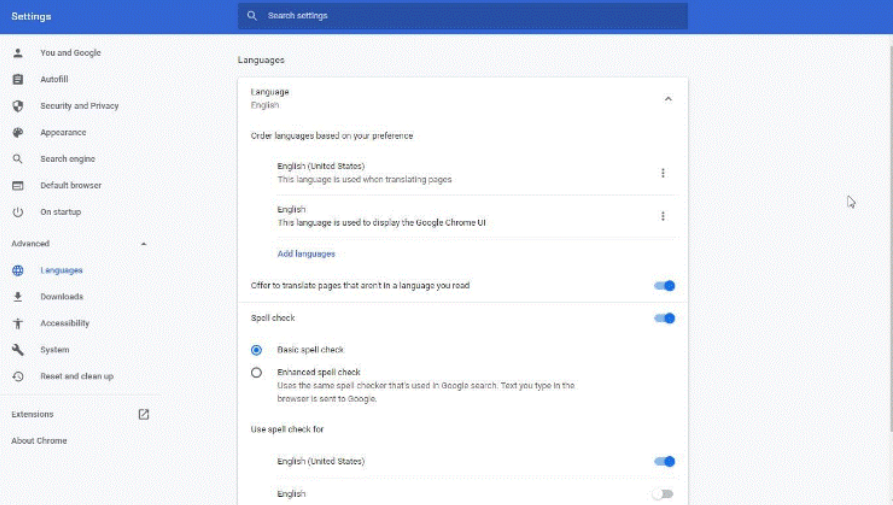
The “Languages” setting lets you choose the language on Chrome’s UI. Here, you can add as many languages as you want and select the one to use at a given time. There’s also the option to enable page translation for pages written in a foreign language. The option saves you the hassle of manually translating every content on that page. The “Languages” section of the advanced settings also has the spell check options where you can opt for “Enhanced Spellcheck” or “Basic Spellcheck.” In addition to customizing the spellcheck experience, the languages section lets you pick your preferred languages when using the browser.
2. Downloads
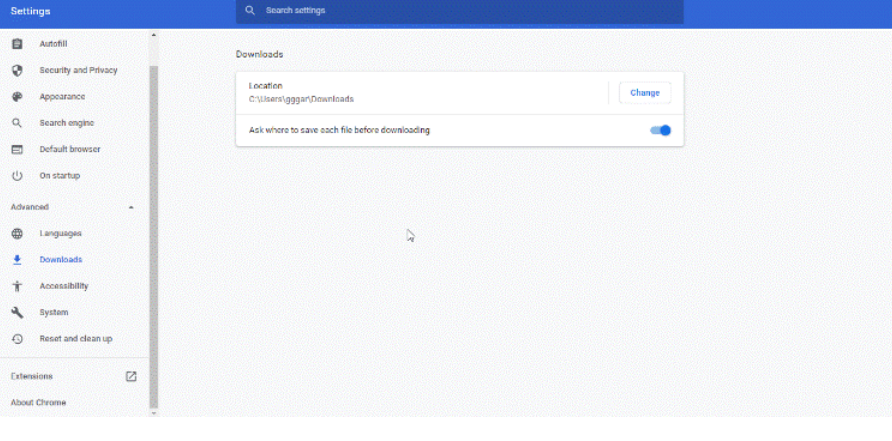
The advanced settings section also lets you change the default location for downloads from the “Downloads” folder to any other. If you don’t have a particular folder to replace with the “Download” folder, you can enable the “Ask where to save each file before downloading” option to decide on the destination folder the next time you’ll be downloading files.
3. Accessibility
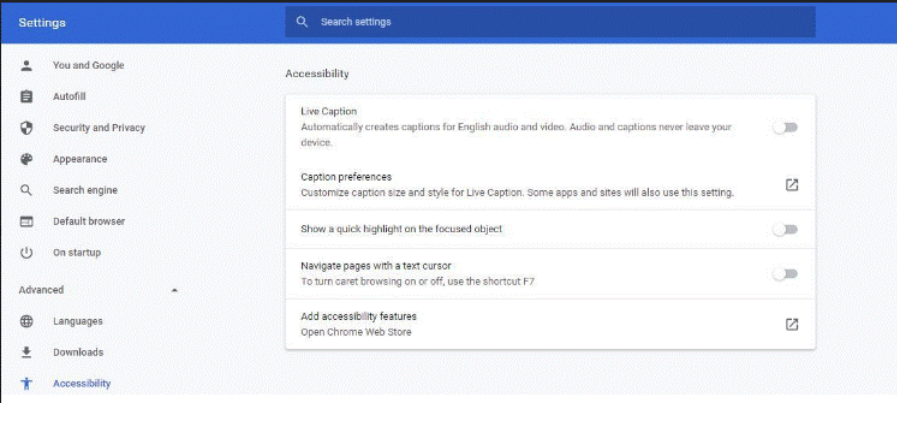
Google Chrome’s advanced settings play a significant role in enhancing accessibility, especially for people with visual impairments and disabilities. It would be a hassle for them to navigate the web without crucial design customizations.
For instance, the advanced settings section allows you to enable live caption, meaning that you’ll have an automatic video and audio caption every time you scroll through web results, watch a video, or browse the web. Don’t forget to set your preferred caption style and size to make it clear.
4. System
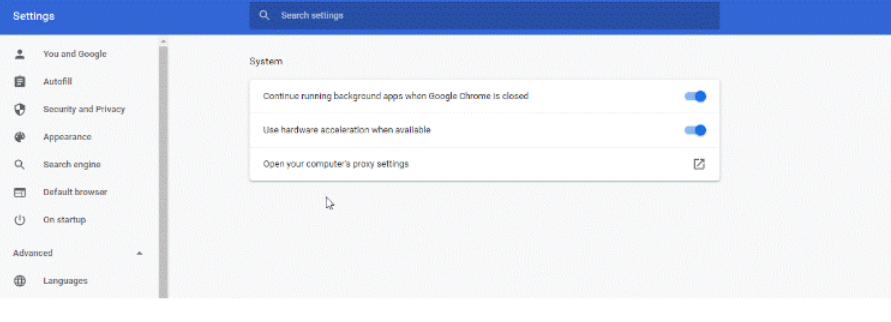
Google Chrome’s advanced settings let you use hardware acceleration or enable your device’s proxy settings. Hardware acceleration helps in quick results loading and smooth operations. On the other hand, enabling the proxy settings sets up a web filter or firewall for secure and private browsing. The same category also has an option to have the “background apps running after you close Chrome.”
5. Reset to Default
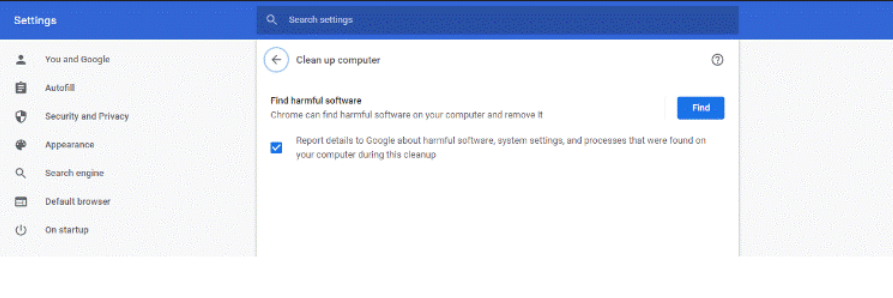
The advanced settings section also allows you to restore settings to the original status. You can also provide details of any harmful processes or software you’ve encountered on Chrome. Consequently, Google locates the software and removes it from your device.

[…] Advanced Chrome Settings […]