MOTOSHARE 🚗🏍️
Turning Idle Vehicles into Shared Rides & Earnings

From Idle to Income. From Parked to Purpose.
Earn by Sharing, Ride by Renting.
Where Owners Earn, Riders Move.
Owners Earn. Riders Move. Motoshare Connects.

With Motoshare, every parked vehicle finds a purpose. Owners earn. Renters ride.
🚀 Everyone wins.

Start Your Journey with Motoshare

How to install android studio

To install Android Studio, follow these steps:

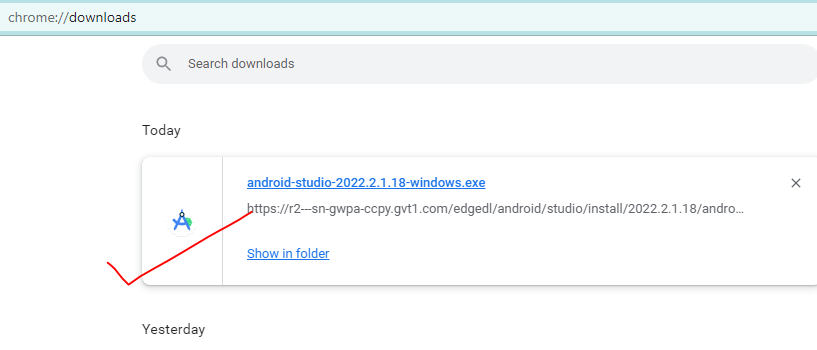
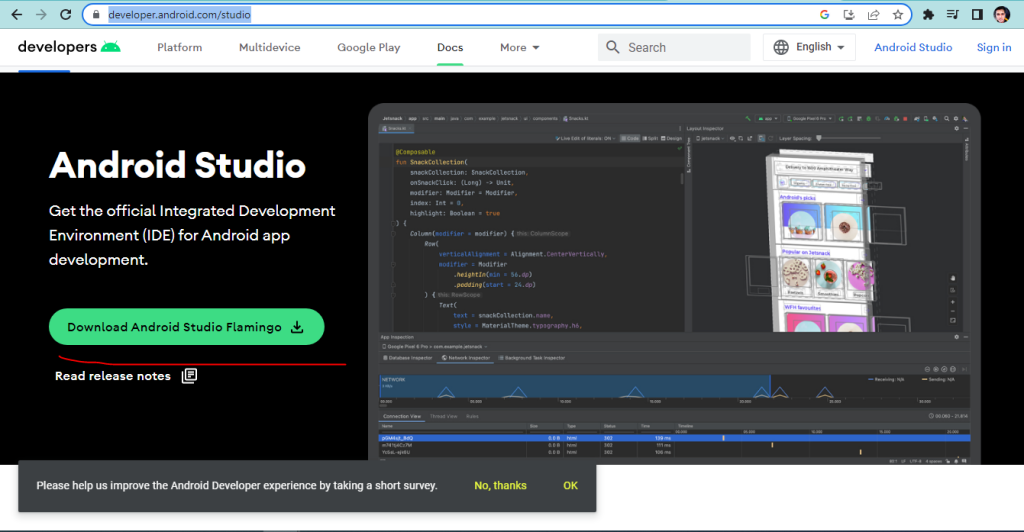
  • Visit the official Android Studio website at https://developer.android.com/studio.
  • Click on the “Download Android Studio” button.
  • Choose the appropriate version for your operating system (Windows, macOS, or Linux).
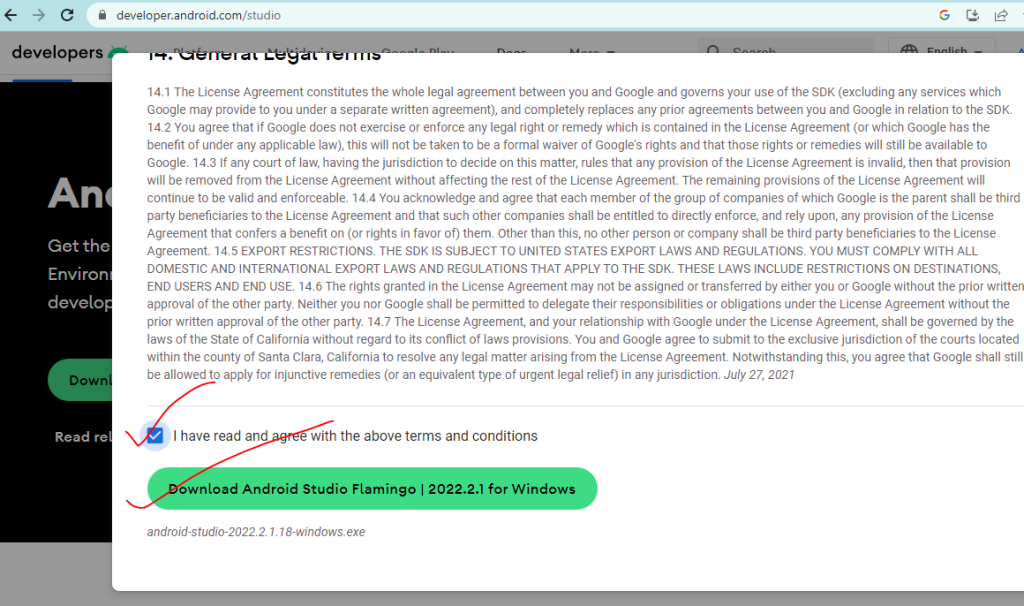
  • Accept the terms and conditions.
  • Once the download is complete, run the installer executable file.
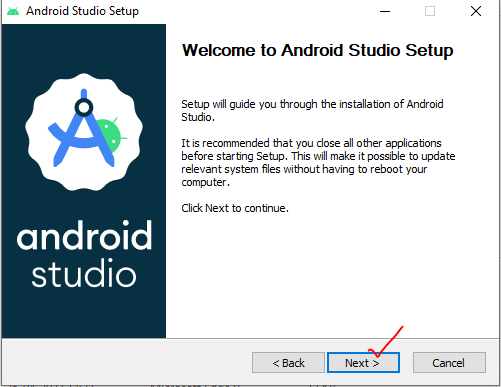
  • Follow the on-screen instructions to proceed with the installation.
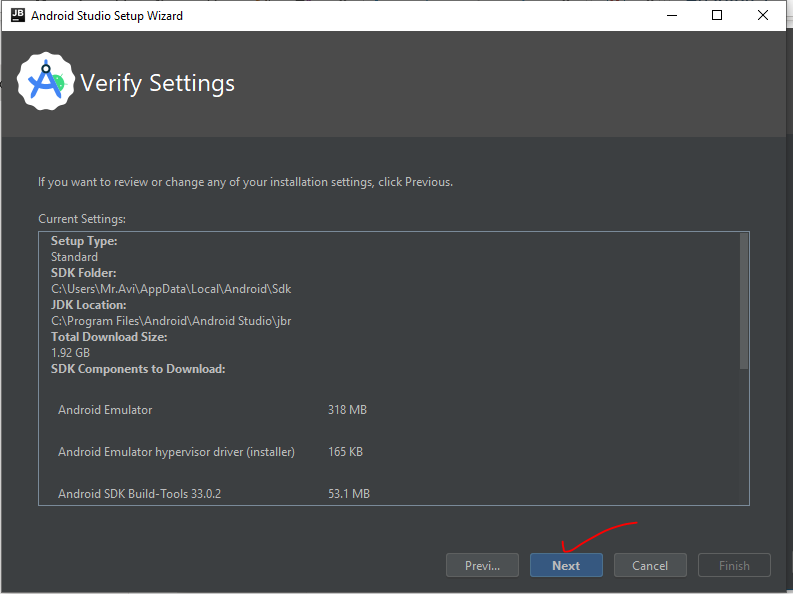
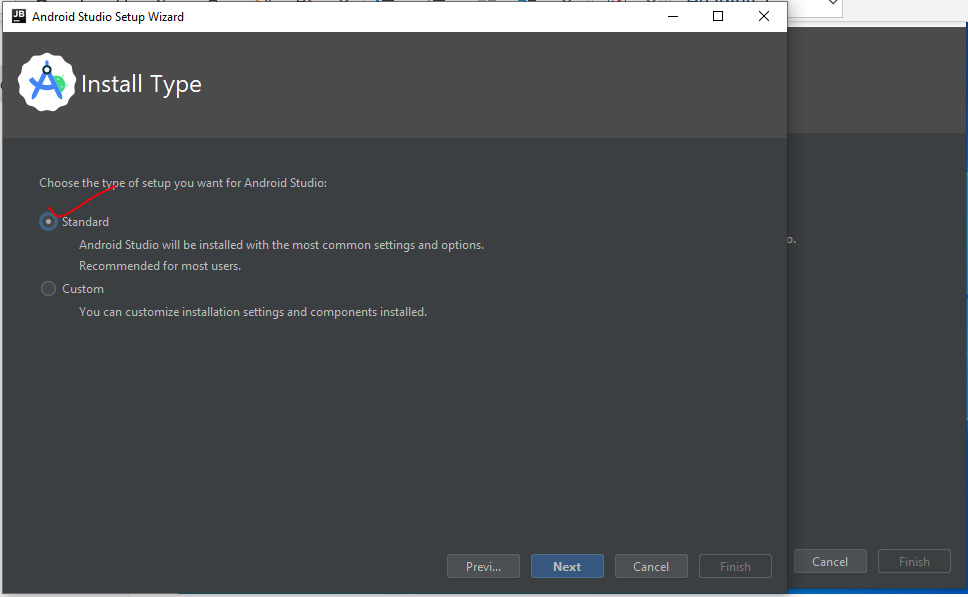
  • When prompted, select the “Standard” installation type unless you have specific requirements.
  • Click “Next” to continue.
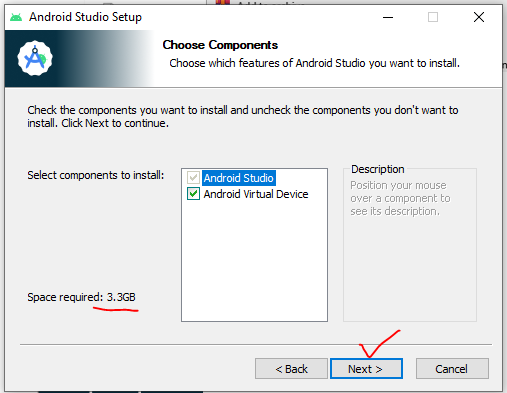
  • The installer will display a list of components to install.
  • Leave the default components selected, as they include essential tools for Android development.
  • Optionally, you can install additional components or modify the installation location.
  • Click “Next” to proceed.
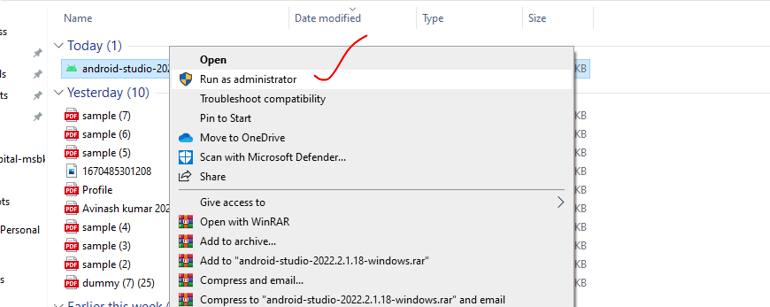
  • Right click on your downloaded file and Run as administrator
  • Android Studio includes the Android Virtual Device (AVD) Manager for running and testing Android apps on virtual devices.
  • Check the box to install the AVD and select the desired system image to be used for emulation.
  • Click “Next” to continue.

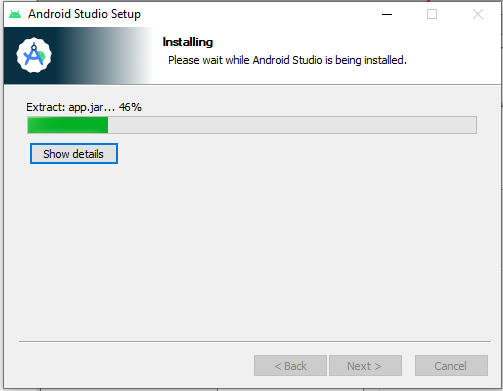
Now wait for complete installation
Here your setup is Finish Now you can move to your installed Android studio
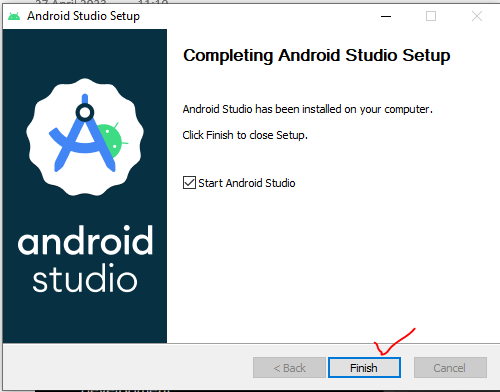
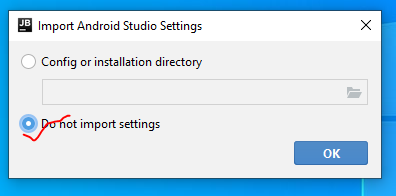
If you want to Config installation directory then select “Config or installation directory” option.

Otherwise you can select” Do not import settings”.
You have two options to choose install type “standard” and “Custom” in standard studio will be installed with common settings and options.

And, In Custom you can customize installation setting.

Most users recommended option is “Standard” .
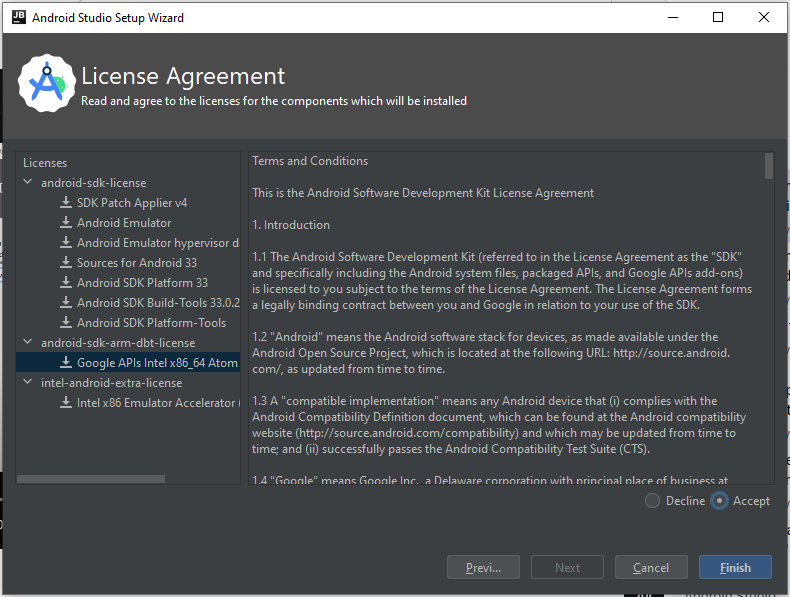
Carefully read License Agreement and then Accept  terms and conditions.
Now, your studio is ready.

Related Posts

Expert-Led SonarQube Training for Developers in Pune

SonarQube works as a main tool to keep code neat and safe in fast software work. This open tool checks code by itself to find bugs, safe…

Expert-Led SonarQube Training for Developers in Mumbai

SonarQube serves as a vital tool for keeping code clean and secure in fast-moving software projects. This open-source platform runs automatic checks to find bugs, security gaps,…

Boost Kolkata’s Code Quality with SonarQube Best Practices

SonarQube stands out as a key tool for checking code health. It helps teams spot bugs, security risks, and poor coding habits early. Many developers in Kolkata…

Boost Code Quality with SonarQube for Hyderabad Developers

SonarQube Training in Hyderabad gives developers hands-on skills to check code quality and find problems early. This training teaches automated analysis to make software cleaner and safer….

Mastering SonarQube for Superior Code Quality in Chennai

SonarQube Training in Chennai delivers practical skills to enhance code quality and detect issues early. Developers gain expertise in automated static analysis for cleaner software. The program…

Mastering SonarQube for Bangalore’s Tech Professionals

SonarQube helps check code quality and find problems early. This guide covers SonarQube training in Bangalore. It shows what SonarQube does, the full class plan, costs, jobs with…

0 0 votes
Article Rating
Subscribe
Notify of
guest
0 Comments
Oldest
Newest Most Voted
Inline Feedbacks
View all comments
0
Would love your thoughts, please comment.x
()
x