MOTOSHARE ๐Ÿš—๐Ÿ๏ธ
Turning Idle Vehicles into Shared Rides & Earnings

From Idle to Income. From Parked to Purpose.
Earn by Sharing, Ride by Renting.
Where Owners Earn, Riders Move.
Owners Earn. Riders Move. Motoshare Connects.

With Motoshare, every parked vehicle finds a purpose. Owners earn. Renters ride.
๐Ÿš€ Everyone wins.

Start Your Journey with Motoshare

How to make a partition in Windows 11 from C drive

Windows 11, the latest operating system from Microsoft, brings with it a host of features and improvements. One essential skill for users is the ability to manage their storage effectively, and creating a partition is a key aspect of that. we will guide you through the process of making a partition in Windows 11 from the C drive using the built-in Disk Management tool.
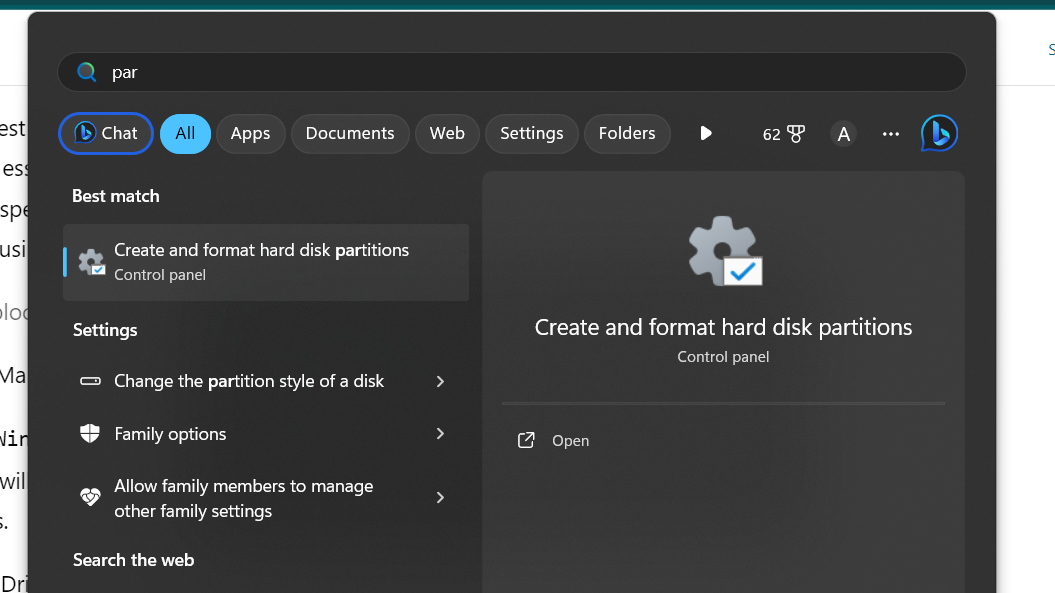
Step 1: Access Disk Management

To begin, press the Win + X keys simultaneously to open the power user menu. From there, select “Disk Management.” This will launch the Disk Management tool, where you can view and manage your system’s drives and partitions.

Step 2: Shrink the C Drive
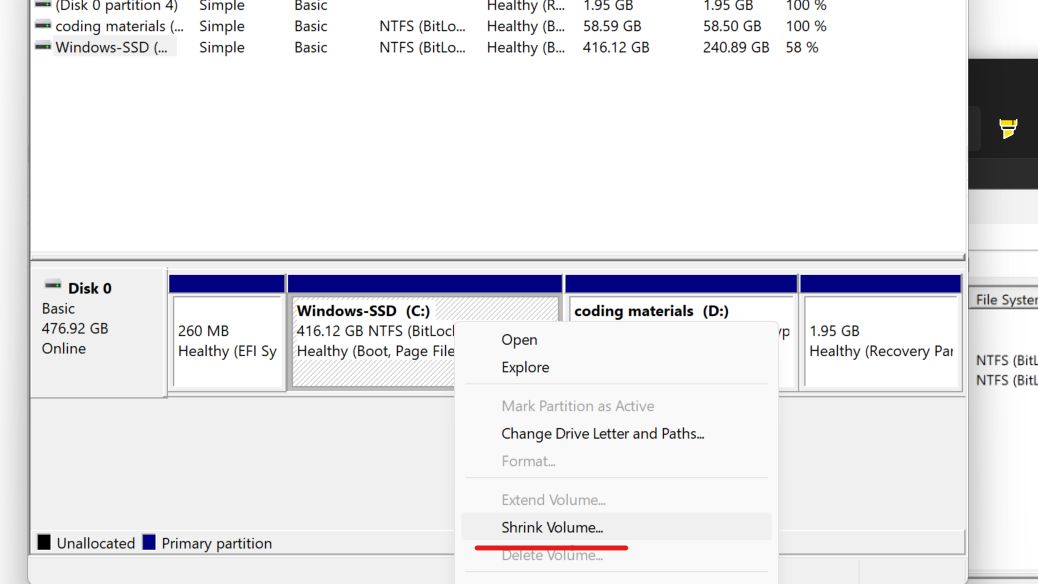
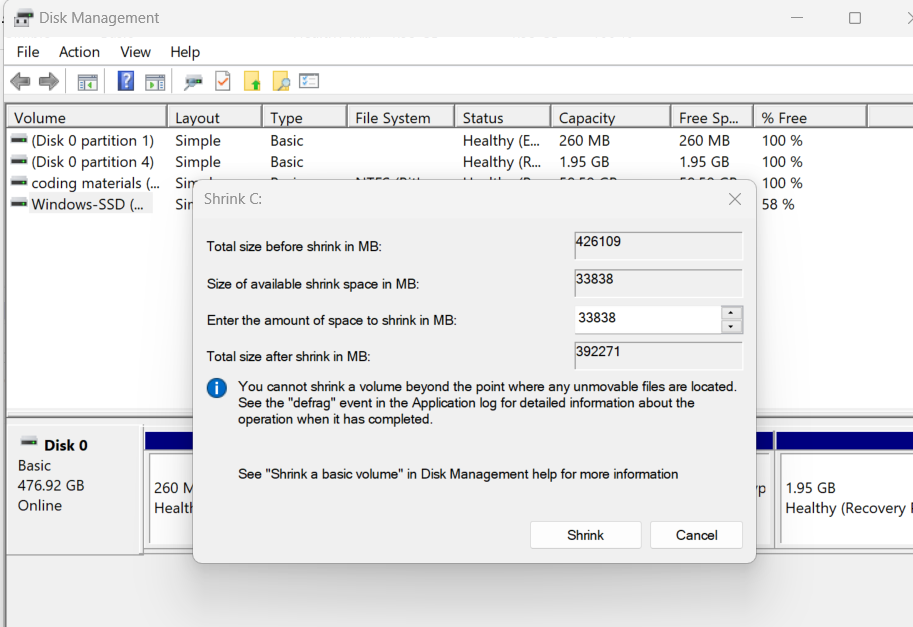
Locate your C drive in the Disk Management window, right-click on it, and choose “Shrink Volume.” In the window that appears, enter the amount of space you want to allocate for the new partition. Keep in mind that this value is in megabytes, so adjust accordingly. Click “Shrink” to initiate the process.

Step 3: Create a New Partition
Once the shrinking process is complete, you will see unallocated space next to the C drive. Right-click on the unallocated space and select “New Simple Volume.” This will open the New Simple Volume Wizard.

Step 4: Configure the New Partition

Follow the wizard’s prompts to configure the new partition. Specify the size for the partition (usually the same as the space you shrunk from the C drive). Choose a drive letter or accept the default one. Assign a meaningful volume label and select the file system (typically NTFS). Opt for a quick format and review your choices before clicking “Finish.”

Step 5: Finalize the Process

You will be prompted with a warning about converting the disk to a dynamic disk. Confirm by clicking “Yes.” The new partition will now be created, and you can observe it in the Disk Management window.

Related Posts

The Smart Patientโ€™s Guide to Comparing Medical Treatment Costs Globally

Making decisions about your health is rarely easy. When you or a loved one faces a medical challenge, the sheer volume of information can feel overwhelming. Suddenly,…

Read More

Compare Treatment Costs and Book Doctors Online With MyHospitalNow

Choosing the right healthcare path is often a source of immense stress. Whether you are dealing with a sudden illness, managing a chronic condition, or seeking a…

Read More

The Ultimate Guide to Version Control and SCM for DevOps Beginners

Introduction In the modern world of software development, no one builds applications in isolation. Whether you are working on a small internal tool or a massive e-commerce…

Read More

Definitive Guide to Infrastructure as Code and Cloud Automation

Introduction In the early days of corporate computing, provisioning hardware was a slow, bureaucratic process. If a development team needed a new environment to test an application,…

Read More

The Executive Guide to Navigating Enterprise Cloud Transformation and DevOps

Introduction Modern business landscapes require organizations to adapt at a pace never seen before. Customer expectations shift in days rather than years, forcing traditional industries to reconsider…

Read More

DevOps Supports Digital Transformation: A Practical Guide for Enterprises

Introduction In the current business landscape, the pressure to modernize is no longer a luxury; it is a matter of survival. Organizations across every industry, from retail…

Read More
0 0 votes
Article Rating
Subscribe
Notify of
guest
5 Comments
Oldest
Newest Most Voted
Inline Feedbacks
View all comments
trackback

[…] How to make a partition in Windows 11 from C drive […]

trackback

[…] How to make a partition in Windows 11 from C drive […]

trackback

[…] How to make a partition in Windows 11 from C drive […]

trackback

[…] How to make a partition in Windows 11 from C drive […]

trackback

[…] How to make a partition in Windows 11 from C drive […]

5
0
Would love your thoughts, please comment.x
()
x