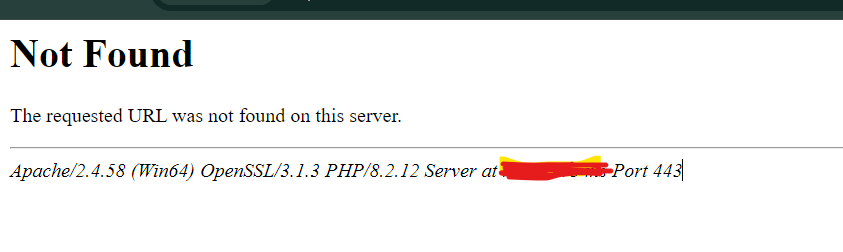
Not Found
The requested URL was not found on this server.
Apache/2.4.58 (Win64) OpenSSL/3.1.3 PHP/8.2.12 Server at name Port 443
If you’ve encountered this error while working on your local server setup or even on a production environment, here’s how you can resolve it.
Solution:
This error typically means that Apache couldn’t find the file or directory you’re trying to access. Let’s go through a step-by-step process to troubleshoot and resolve the issue.
1. Check the URL
- First, make sure that the URL you’re trying to access is correct. Even a small typo in the URL can lead to this error.
- Ensure that the file or directory exists in the location specified by the URL. For instance, if you’re trying to access
http://localhost/example/index.php, make sure theindex.phpfile exists inside theexampledirectory.
2. Directory Indexing Configuration
If you are accessing a directory without specifying a file (like http://localhost/example/), Apache will try to load a default file (like index.php or index.html). If such a file doesn’t exist, you might get the “Not Found” error.
- Open your Apache configuration file (
httpd.conf). - Look for the line that defines the
DirectoryIndex, which specifies the default files that Apache looks for in a directory. It should look something like this:
DirectoryIndex index.php index.html- If this line is missing or doesn’t include the file type you are trying to load, add it and restart Apache.
3. Check File Permissions
Sometimes, the “Not Found” error can be caused by permission issues. Apache needs the appropriate permissions to read the files and directories on your server.
- Ensure that your files and directories have the correct permissions. On Linux, the
chmodcommand can be used to adjust file permissions:
sudo chmod 755 /path/to/your/directory
sudo chmod 644 /path/to/your/file.php
- On Windows, make sure that the Apache service has access to the necessary files.
4. Check Apache’s DocumentRoot
Apache serves files from a specific directory, known as the DocumentRoot. If your files are not placed in the correct location or if the DocumentRoot is incorrectly configured, you will get a “Not Found” error.
- Open your
httpd.conffile and look for theDocumentRootdirective. It might look something like this:
DocumentRoot “C:/xampp/htdocs”
- Ensure that the file you’re trying to access is within the directory specified by
DocumentRoot.
5. Check Virtual Hosts Configuration
If you’re using virtual hosts (multiple sites running on the same server), an incorrectly configured virtual host can lead to a “Not Found” error.
- Open your virtual hosts configuration file (often found in
conf/extra/httpd-vhosts.confor similar). - Ensure that the
ServerNameandDocumentRootare correctly set for the site you are trying to access. Example:
<VirtualHost *:443>
    ServerName name
    DocumentRoot "C:/path/to/your/site"
    SSLEngine on
    SSLCertificateFile "C:/path/to/ssl/certificate.crt"
    SSLCertificateKeyFile "C:/path/to/ssl/private.key"
</VirtualHost>
Also, verify that the virtual host configuration is included in your main Apache configuration file (httpd.conf), like this:
Include conf/extra/httpd-vhosts.conf
6. Restart Apache
After making any changes to your configuration files, restart the Apache server to apply the changes:
- On Windows (if using XAMPP or WAMP), you can stop and start the Apache service through the control panel.
sudo systemctl restart apache2More topics on Bug fixing:
